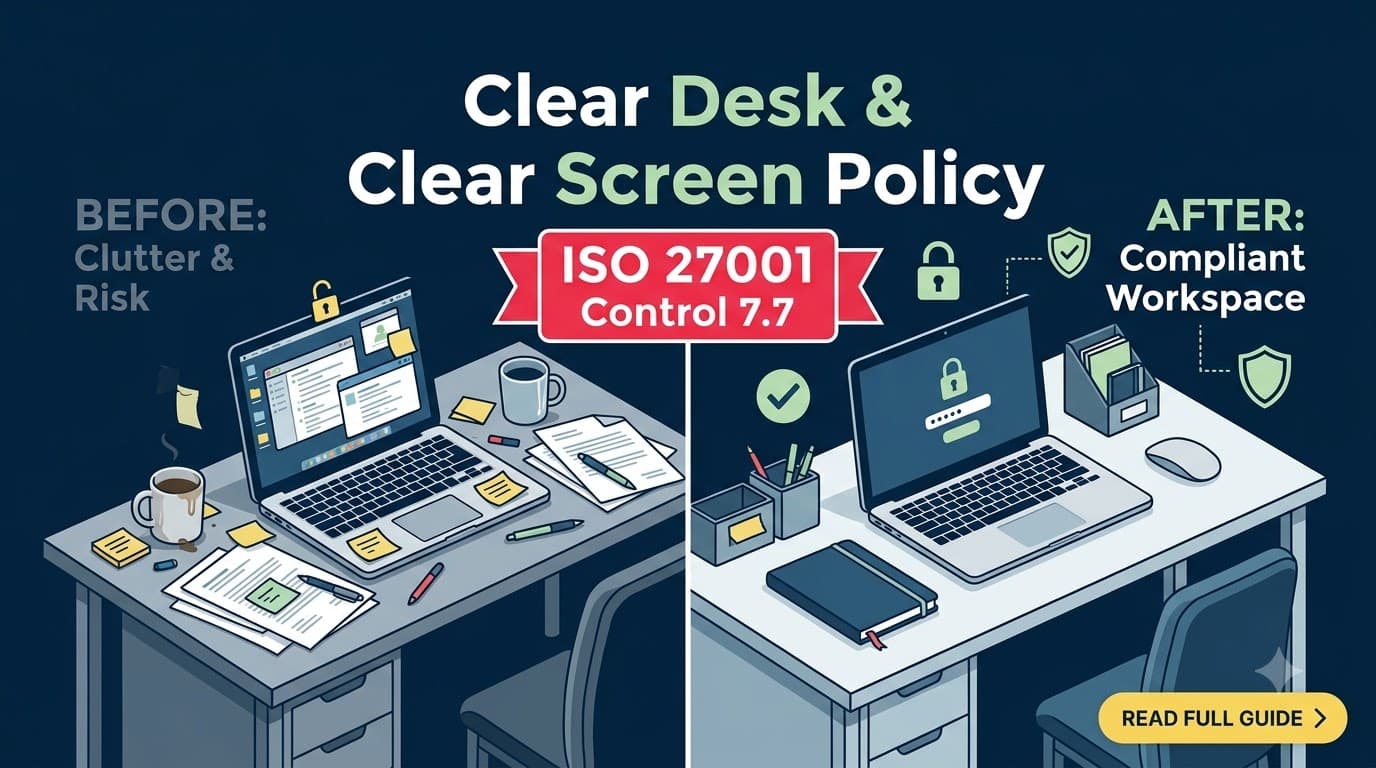
The photo that almost cost a $340 million deal
At 9:40 p.m. on a Thursday, a contract cleaner working the twelfth floor of a Boston office tower snapped a photo on her personal phone. Not out of malice — she was bored, and the laptop screen glowing in an otherwise dark office caught her eye. On it: a due diligence data room, wide open, showing a valuation model, a draft term sheet, and a folder path that read "Project Falcon — Confidential — Do Not Distribute."
The laptop belonged to an associate at Meridian Sloane Advisors, a 60-person boutique M&A advisory firm working the sell side of a $340 million acquisition. He'd stepped out for what he thought would be a five-minute coffee run and forgot the golden rule his firm's information security policy spelled out in bold on page one: lock your screen every time you leave your desk, no exceptions. Windows key + L. Two seconds. He hadn't done it in months because nobody had ever checked.
The cleaner didn't sell the photo to a journalist or a short-seller. She showed it to her supervisor, mostly out of confusion about whether she'd done something wrong. The supervisor, to his credit, escalated it to the building's property manager, who called Meridian Sloane's office manager the next morning. It took three more phone calls before anyone at Meridian Sloane understood how close they'd come to a material non-public information leak that could have triggered an SEC inquiry, blown up client confidentiality obligations, and handed a leverage point to the buy side of the deal. The firm spent roughly $85,000 on forensic review, outside counsel, and an emergency policy overhaul to confirm no further exposure — and lost a week of senior partner time it never got back.
Nobody hacked Meridian Sloane. No malware, no phishing email, no zero-day. A screen was left unlocked in an unattended office, and a stranger with a phone camera did the rest. That is the entire risk model behind ISO 27001 Annex A Control 7.7, Clear desk and clear screen — and it is exactly the kind of control that gets waved through in a documentation review and then fails, repeatedly, the moment anyone actually walks the floor.
Who this is for
This article is for the ISMS manager, office manager, or CISO who has been handed Control 7.7 and thinks it's the easy one on the list — right up until the internal auditor does a Friday-afternoon walkthrough and finds seventeen findings in one pass. You'll get a complete clear desk policy and a complete clear screen policy you can adapt directly, enforcement tactics that don't rely on public shaming, adaptations for hybrid work and hot-desking, guidance on printers, whiteboards, and incoming mail, the KPIs auditors and management actually want to see, and the evidence package that turns a "small" control into an easy pass.
What Control 7.7 actually requires — and why "small" doesn't mean "unimportant"
ISO/IEC 27001:2022 Annex A Control 7.7 states, in essence, that clear desk rules for papers and removable storage media, and clear screen rules for information processing facilities, shall be defined and appropriately enforced. It sits inside the Physical Controls theme (7.1–7.14), alongside perimeter security, entry control, and equipment protection — the Physical Controls Overview covering all fourteen controls is worth reading first if you haven't mapped how 7.7 fits alongside its neighbors.
ISO/IEC 27002:2022's implementation guidance for 7.7 is more specific than the Annex A control text alone, and it's worth internalizing because auditors test against it directly. The guidance calls for:
Locking away sensitive or classified papers and removable storage media when not in use, especially outside working hours.
Locking or logging off computers, laptops, and other information processing facilities when unattended, and protecting them with a key, password, or other control when not in use.
Preventing unauthorized use of photocopiers, scanners, and other reproduction technology.
Removing sensitive documents from printers and fax machines immediately.
Considering the risk of unattended desks — even briefly — as a point of exposure.
Protecting incoming and outgoing mail points and unattended fax machines.
Applying these rules to whiteboards and other visible surfaces that might display sensitive information.
Here's the trap: because the control is short — one sentence in Annex A — organizations treat it as trivial. They write a two-paragraph policy, email it once, and never revisit it. But clear desk and clear screen is one of the highest-frequency, lowest-cost-to-fix, highest-visibility findings an external auditor can generate, because it's the one control they can test just by walking the floor for fifteen minutes before the opening meeting even starts. I have watched Stage 2 audits go sideways not because of a missing risk register but because the auditor walked past six unlocked screens and a printer tray full of payroll reports on the way to the conference room. A control that costs almost nothing to implement and almost nothing to test is exactly the kind of control where organizations get complacent — and exactly the kind where auditors calibrate how seriously they'll scrutinize everything else you show them.
"I tell every client the same thing before their Stage 2: your auditor forms an opinion about your security culture in the first ninety seconds, before they've read a single document, based on what's on your desks. Clear desk and clear screen isn't a paperwork control — it's a walking, talking demonstration of whether your ISMS lives outside the policy folder." — Renata Fischer, Lead Auditor, Alderfen Certification Partners
Where 7.7 sits relative to other controls
Clear desk and clear screen doesn't operate alone. It's the last line of physical defense after several other controls have already done their job — and it depends on those controls being in place to make sense in the first place.
Related control | Relationship to 7.7 |
|---|---|
7.3 Securing offices, rooms and facilities | Defines the physical space (locked offices, restricted rooms) where clear desk rules apply; see Securing Offices, Rooms, and Facilities: Control 7.3 |
7.1–7.2 Perimeters and entry control | Establishes who can physically reach the desk in the first place |
8.1 User endpoint devices | Governs the device-level configuration (auto-lock timeouts, encryption) that makes "clear screen" technically enforceable |
5.9–5.14 Asset management, classification, labelling, acceptable use | Determines which papers and media are "sensitive" and therefore in scope for lock-away rules — see Asset Management: Controls 5.9–5.14 |
6.3 Security awareness, education and training | Delivers the behavioral reinforcement that keeps clear desk habits alive after the policy launch; see Security Awareness, Education, and Training: Control 6.3 |
6.4–6.7 Disciplinary process and remote working | Provides the consequence structure and the home-office equivalent rules; see Disciplinary Process and Remote Working Security: Controls 6.4–6.7 |
Think of 7.7 as the control that fails quietly and gets noticed loudly. A gap in 8.1 device encryption is invisible until there's a breach. A gap in 7.7 is visible to anyone who walks past — including your auditor, your biggest client on a site visit, and, in Meridian Sloane's case, a cleaner with a phone.
A full clear desk policy you can adapt
A clear desk policy needs to answer three questions for every employee: what has to be locked away, when, and what happens if it isn't. Vague language ("keep your desk tidy") fails audits because it isn't testable. Below is a complete rule set structured the way I write it for clients — specific enough to enforce, general enough to apply across departments.
Policy statement (opening paragraph): All employees, contractors, and visitors working from organization premises shall ensure that papers, removable storage media, and other physical information assets are not left unattended in a state that exposes their contents to unauthorized viewing, copying, or removal. This applies during working hours when a desk is unattended and, without exception, at the end of each working day.
Rule | Applies to | Timing | Rationale |
|---|---|---|---|
Lock away confidential and restricted papers in a locked drawer, cabinet, or safe | All classified documents per the organization's classification scheme | End of each working day; also during any absence longer than 30 minutes | Prevents opportunistic viewing or removal when the desk is unattended |
Lock away removable storage media (USB drives, external hard drives, backup tapes, SD cards) | All removable media, regardless of content | End of each working day | Media is small, portable, and easy to conceal or steal; content isn't visible until it's too late |
Store public or internal (non-sensitive) papers neatly but not necessarily under lock | Internal-use and public classification only | End of each working day | Reduces clutter and supports a consistent visual standard without over-engineering low-risk material |
Clear desks of sensitive documents during any unattended period, even short breaks | Confidential and restricted classifications | Any time the desk is left unattended, including short breaks | Even a two-minute absence is enough for a photo, a glance, or a removal |
Shred or securely dispose of printed drafts, sticky notes with credentials, and working papers no longer needed | All documents no longer required | Same day as identified obsolete | Prevents "desk archaeology" — sensitive information surviving in draft form long after its official record is retired |
Never write passwords, PINs, or access codes on paper, sticky notes, or whiteboards | All authentication information | Always | Authentication information in plain view defeats every other access control in the ISMS |
Lock filing cabinets, drawers, and storage rooms containing physical assets at the end of each day | Shared and personal storage | End of each working day | Extends the "lock away" principle beyond the individual desk to shared physical storage |
Store keys, access cards, and physical tokens securely — not left on or under the desk | Physical access credentials | Always when not in active use | Physical credentials left in plain sight defeat entry controls under 7.1–7.3 |
Clear conference room tables and whiteboards of client or project materials after every meeting | Meeting rooms and shared spaces | Immediately after meeting ends | Meeting rooms are used by multiple groups; material left behind is exposed to the next occupant |
Return borrowed classified documents to their designated secure storage location, not to a "to file" pile on the desk | Confidential and restricted classifications | Same day as use | "To file" piles are the single most common clear desk failure I find in walkthroughs |
Roles matter here — a policy that says "employees are responsible" without naming who checks, who owns exceptions, and who escalates repeat violations will not survive a mature audit program.
Role | Clear desk responsibility |
|---|---|
All employees and contractors | Follow the policy at their own workstation; report unattended sensitive material they discover |
Line managers | Reinforce the policy within their team; address first-line violations informally |
Facilities / office management | Provide adequate locked storage (drawers, cabinets, safes) for every desk in scope; maintain shredding and secure disposal bins |
ISMS manager / information security team | Own the policy document, run walkthroughs, track findings, report metrics to management review |
HR | Apply the disciplinary process for repeat or willful violations, in coordination with Disciplinary Process and Remote Working Security: Controls 6.4–6.7 |
Internal audit | Test clear desk compliance as part of the internal audit program and report findings to management |
One point I push back on with clients who want to over-engineer this: not every desk needs a safe. Match the control intensity to classification. A customer support desk handling ticket notes doesn't need the same lock-away discipline as a desk handling unreleased financial results or legal case files. If you flatten the policy to "everything is locked away always," you'll get compliance fatigue and, ironically, worse adherence to the rules that actually matter. Tie the rules back to the classification scheme you already have under Asset Management: Controls 5.9–5.14 rather than inventing a parallel system.
A full clear screen policy you can adapt
Clear screen is the digital sibling of clear desk, and in a hybrid-work world it has arguably become the more consequential half of Control 7.7. A locked drawer stops a curious passerby; an unlocked laptop stops nothing — it hands over email, chat history, file shares, and often a live VPN session into the corporate network.
Policy statement (opening paragraph): All employees, contractors, and visitors shall lock or log off any computer, laptop, mobile device, or information processing facility whenever it is left unattended, regardless of location or duration of absence, and shall configure automatic locking as a backstop control.
Rule | Applies to | Timing | Rationale |
|---|---|---|---|
Manually lock the screen (e.g., Windows key + L, Control + Command + Q on macOS) every time you step away from a device | All workstations, laptops | Every departure, regardless of duration | Manual locking is instant; automatic timeout is a backstop, not a substitute |
Configure automatic screen lock after a defined period of inactivity | All managed endpoints | 5 minutes standard; 2 minutes for workstations handling restricted data | Covers the gap when an employee forgets to lock manually |
Log off or shut down at the end of the working day rather than leaving sessions open overnight | All workstations, laptops, virtual desktops | End of working day | Reduces the window of exposure to zero outside working hours |
Position monitors so screens are not visible from windows, corridors, reception areas, or over-the-shoulder sightlines | Desks in view of public or shared areas | Ongoing (desk placement) | Prevents shoulder surfing even when a screen is technically "in use" |
Use privacy screens/filters on laptops used in open-plan offices, client sites, or travel | Devices regularly used outside a controlled office | Ongoing | Reduces visual exposure risk without disrupting workflow |
Disable or password-protect screensavers that display notification previews (email subject lines, chat messages) on the lock screen | All endpoints | Ongoing (device configuration) | Notification previews leak sensitive content even on a "locked" screen |
Never share login credentials to bypass individual accountability for screen lock/unlock events | All accounts | Always | Shared credentials break the audit trail this control depends on |
Lock mobile devices (phones, tablets) issued for work use with a PIN, biometric, or passcode, set to auto-lock within 2 minutes | Company-issued and BYOD devices with corporate access | Ongoing | Extends clear screen principles to endpoints outside the traditional desk, tying into [8.1 User Endpoint Devices] |
Log off shared or kiosk-style terminals immediately after use | Shared workstations, reception kiosks, lab terminals | Immediately after each use | Shared terminals are a common blind spot — the next user inherits the previous session if it isn't closed |
Close remote access sessions (VPN, RDP, VDI) rather than leaving them connected and unattended | Remote and hybrid workers | End of session or extended absence | An open remote session is functionally identical to an unlocked office device |
The device-configuration side of this policy — auto-lock timeouts, screensaver settings, disk encryption — is where clear screen intersects with endpoint management. That configuration work belongs to endpoint hardening standards, and if your organization hasn't yet published a dedicated article mapping those settings to Annex A, log it as a gap: "User Endpoint Devices: Control 8.1" is the natural home for that detail and is worth building out as a companion piece.
"Clear desk gets the attention because it's visual — a messy desk looks bad in a photo. Clear screen is the one that actually gets exploited. I've run more incident investigations that started with an unlocked, unattended laptop than with a stray piece of paper. If you only have budget to enforce one half of Control 7.7 rigorously, enforce clear screen first." — Devon Okafor, Head of Information Security, Bramwell Logistics Group
Setting the automatic lock timeout: the trade-off table
Clients often ask what the "right" inactivity timeout is. There's no single ISO-mandated number — 27002 asks you to define and enforce a rule, not to hit a specific minute count — but the trade-off is consistent across engagements.
Timeout setting | User friction | Security posture | Best fit |
|---|---|---|---|
1–2 minutes | High — frequent re-authentication interrupts flow | Strongest; minimizes exposure window | Workstations handling restricted/regulated data (finance, legal, healthcare records) |
5 minutes | Moderate — a reasonable default most staff tolerate well | Strong; industry-common baseline | General office workstations, most knowledge-worker roles |
10–15 minutes | Low friction | Weaker; leaves a meaningful exposure window | Low-sensitivity roles only, with compensating controls (physical access restriction) |
No automatic lock (manual only) | Lowest friction, highest human dependency | Weakest — relies entirely on user discipline | Not recommended as a sole control under any circumstances |
I generally push clients toward 5 minutes as the default with a 2-minute override for anyone handling restricted-classification data, then let manual locking (which should be habitual, not optional) cover the gap in between.
Enforcement tactics that actually change behavior
Publishing a policy changes nothing on its own. Enforcement is what separates organizations that pass their Stage 2 walkthrough from organizations that collect a nonconformity. The good news: clear desk and clear screen enforcement is cheap, doesn't require new tooling in most cases, and responds well to light, consistent pressure rather than heavy-handed punishment.
Tactic | How it works | Effort | Notes |
|---|---|---|---|
Scheduled walkthroughs | ISMS manager or a rotating "security champion" walks the floor at a set cadence (e.g., weekly) with a checklist, logging findings by desk location (not by name) | Low | Predictable walkthroughs improve behavior even without punishment — people know it's coming |
Unannounced spot checks | Same as above, but on a random schedule, sometimes after hours | Low | Catches the "I only lock my screen when I know they're checking" pattern; use sparingly to avoid a "gotcha" culture |
The "caught you" card | A small, non-punitive card left on a desk found in violation, describing what was found and the fix, with no manager cc | Very low | Low-friction, immediate feedback loop; most effective for first-time or occasional lapses |
Escalating notice for repeat findings | First finding = card; second = email to employee and manager; third = referral to HR under the disciplinary process | Low | Creates a fair, documented progression before anyone reaches formal discipline |
Gamified team scoreboard | Track violation counts by team or floor (not by individual) on a shared dashboard; recognize the cleanest team each month | Moderate | Converts compliance into friendly competition rather than surveillance; works especially well in open-plan or hot-desking environments |
Photo evidence log (internal only) | Auditor or champion photographs anonymized violations (no visible names/faces) for the internal evidence file and trend reporting | Low | Doubles as audit evidence and as a training aid — real, in-context examples land better than generic slides |
Automated screen-lock enforcement | IT pushes a Group Policy or MDM setting enforcing the auto-lock timeout at the OS level, removing reliance on memory alone | Moderate (one-time setup) | Converts clear screen from a purely behavioral control into a partially technical one — the single highest-leverage tactic on this list |
End-of-day "last one out" checklist | The last person to leave a shared space does a quick visual sweep and signs off (physically or digitally) | Low | Works well for small teams and shared spaces; less scalable for large open floors |
The mistake I see most often is treating enforcement as binary — either nothing happens, or it goes straight to a formal write-up. Neither works. A graduated response, starting with a low-friction nudge and only escalating for genuine repeat or willful violations, produces sustained behavior change without making information security the office's most resented department.
"We stopped calling them 'violations' and started calling them 'finds.' Same walkthrough, same checklist, completely different reaction from staff. Nobody feels accused when the language is neutral — and our repeat-offense rate dropped by more than half within two quarters." — Priya Ramanathan, Office Operations Lead, Castellane Insurance Group
Tying enforcement to awareness
Enforcement without awareness breeds resentment; awareness without enforcement breeds indifference. The two have to move together, and the natural home for the awareness half is your organization's broader training program — see Security Awareness, Education, and Training: Control 6.3 for how to structure the full program, not just the clear desk slice of it.
Practical hooks that work specifically for 7.7:
New-hire onboarding demo. Physically show new employees how to lock a screen and where the locked storage is on day one — don't bury it in a slide deck they'll skim.
Real (anonymized) photo examples. Nothing lands better in a training session than an actual photo of a violation from your own office, with names and screen content blurred. Generic stock-photo training material gets tuned out.
Tie it to a story, not a rule. A two-minute retelling of a near-miss (internal, or an anonymized industry example like Meridian Sloane's) does more for retention than a bullet list of "do this, don't do that."
Refresh at renewal points. Reissue clear desk/clear screen reminders whenever the office layout changes, after a hot-desking rollout, or ahead of a known audit window — not just once a year on a fixed training calendar.
Make managers visible participants. If leadership's desks are never checked or are quietly exempted, the policy loses credibility across the entire floor within weeks.
Hybrid, home office, and hot-desking: adapting the policy for where work actually happens
Most clear desk/clear screen policies were originally written for a single-office, assigned-desk world. That world is largely gone. If your policy doesn't explicitly address home offices and hot-desking, you have a control on paper that doesn't cover where most of the actual risk now lives.
Home and hybrid working
Adaptation | Detail |
|---|---|
Define "unattended" for a home environment | At home, "unattended" includes family members, roommates, and visitors — not just strangers. The policy should say so explicitly rather than assuming an office-only context |
Require lockable storage at home for anyone regularly handling confidential/restricted material | A lockable drawer, cabinet, or bag is a reasonable and low-cost ask; document it as part of the remote working provisioning checklist |
Extend screen-lock rules identically to home devices | There is no "home exception" to locking a screen — auto-lock timeouts and manual locking apply the same whether the desk is in an office or a spare bedroom |
Address shared/family devices | Prohibit conducting confidential work on personal, shared-household devices that others (including children) also use, unless separate user profiles and full-disk encryption are in place |
Cover video call backgrounds and virtual backgrounds | Remind staff that whiteboards, sticky notes, and paperwork visible behind them on video calls are a clear desk exposure too — blur or virtual-background settings don't remove physical documents from view of anyone who later walks into the room |
Printed material disposal at home | Provide a cross-cut shredder or a secure return-to-office disposal process for anyone regularly printing confidential material at home; don't leave staff to guess |
Hot-desking and shared workspaces
Hot-desking removes the one thing that made clear desk easiest to enforce historically: a desk that belongs to one person who can be held accountable for it. Multiple people using the same physical space in a single day multiplies the number of "unattended" moments and blurs who's responsible for a given finding.
Adaptation | Detail |
|---|---|
Mandatory clean-slate handover | Every user clears the desk of all personal and work material before releasing the booking — not just at day's end, but at every handover between users |
No personal or work storage left at the desk between sessions | Hot desks should have zero fixed storage assigned to an individual; provide lockers instead for anything that needs to persist between sessions |
Shorter automatic screen-lock timeout on shared terminals | If any shared terminals exist (not just personal laptops docking in), set a more aggressive timeout — 2 minutes or less — since the next user is often only moments away |
Booking-system accountability | Desk-booking software should log who occupied which desk and when, so a walkthrough finding can be traced to a time window and individual even without an assigned seat |
Visible signage at each hot desk | A small placard restating the clear desk expectation reduces the "I didn't know this desk had rules" excuse that's common in unfamiliar or transient seating |
Lockable personal lockers as standard issue | Every hot-desking employee should be issued a locker for the day (or permanently) — without one, "lock away your papers" has nowhere to point |
"Hot-desking was the thing that finally forced us to take Control 7.7 seriously. With assigned desks, a messy desk was one person's problem. With hot-desking, a document left behind belongs to whoever finds it next — and that ambiguity is exactly the kind of gap an auditor will pull on." — Marcus Whitfield, Facilities & Security Manager, Corvane Digital
Printers, incoming mail, and whiteboards: the forgotten exposure points
Clear desk and clear screen conversations tend to focus on individual desks and laptops, but ISO 27002's guidance for 7.7 explicitly calls out shared equipment and reproduction technology — and in my experience, these are where a surprising share of findings originate, precisely because nobody "owns" a shared printer the way they own their own desk.
Exposure point | Risk | Control |
|---|---|---|
Networked printers/copiers | Confidential print jobs sit in the output tray, visible to anyone passing, sometimes for hours | Require "pull printing" (release codes or badge tap at the device) for anything above internal classification; place printers away from public sightlines |
Fax machines (still present in legal, healthcare, finance) | Incoming faxes containing regulated data land in an open tray | Restrict fax machines to a locked or supervised room; assign a named owner responsible for clearing the tray on a fixed schedule |
Scanners with local storage/history | Scanned documents may persist in device memory or a "recent jobs" list accessible to the next user | Configure automatic memory clearing after each job; restrict access to scan history via device admin settings |
Incoming/outgoing physical mail points | Mail and courier deliveries containing sensitive material (contracts, ID documents, cheques) sit in an open mailroom or reception tray | Designate a locked mail collection point with restricted access; log receipt for anything sensitive |
Whiteboards in meeting rooms and open areas | Diagrams, client names, project codenames, or even passwords scrawled during a working session remain visible after the meeting ends | Require whiteboards to be wiped at the end of every meeting; treat persistent "parking lot" whiteboards in open areas as a standing risk and restrict their content accordingly |
Sticky notes on monitors | The single most photographed clear desk violation in every walkthrough I've ever run — usually a password | Prohibit outright; pair with an accessible password manager so there's no legitimate reason to write one down |
A quick anecdote that illustrates the printer risk well: during one gap assessment, I found a shared printer tray holding four unclaimed payroll reports, a signed NDA awaiting countersignature, and someone's boarding pass. None of it was locked, encrypted, or access-controlled — it was simply sitting there, in a hallway, for anyone to pick up. That single tray represented more realistic exposure than most of the technical controls we'd spent the prior two days reviewing.
Measuring compliance: KPIs that mean something
"We have a clear desk policy" is not evidence of anything. What management review and external auditors actually want is a trend — proof that compliance is measured, tracked, and improving (or at least stable and acceptable) over time.
KPI | How to measure | Target/benchmark (illustrative) |
|---|---|---|
Walkthrough finding rate | Violations found ÷ desks/workstations checked, per walkthrough | Downward trend quarter over quarter; many organizations aim for under 5% once the program matures |
Repeat-offender rate | Employees with more than one finding within a rolling 90-day period ÷ total findings | Should shrink as awareness and enforcement take hold; a flat or rising rate signals the enforcement model isn't working |
Screen-lock auto-timeout compliance | % of managed endpoints reporting the enforced timeout setting via MDM/Group Policy | Target 100% for managed devices — this is a technical control, not a behavioral one, so it should be near-total |
Time-to-remediate a finding | Average time between a walkthrough finding and confirmed fix | Same-day for simple fixes (lock a screen); track separately for structural fixes (e.g., installing a locking cabinet) |
Training completion rate for clear desk/clear screen module | % of staff who completed the relevant awareness module within the required period | Target 100% annually, with new hires completing it within their first week |
Findings by location/floor/team | Violations grouped by physical area, not by individual | Identifies whether a problem is organization-wide or concentrated (e.g., one floor with inadequate locked storage) |
Printer/shared-device tray clearance checks | Scheduled checks confirming shared output devices are cleared on the defined cadence | Target zero uncollected sensitive documents at each check |
Report these metrics at management review alongside your other ISMS performance indicators — a control that never surfaces in management review looks, to an auditor, like a control nobody actually owns.
Evidence for auditors: what to have ready
Auditors testing Control 7.7 will do two things: read your policy, and then go looking for proof it's alive. Have both halves ready.
Evidence type | What it demonstrates | Where it lives |
|---|---|---|
Approved clear desk and clear screen policy document | The control is formally defined, per the Annex A requirement | Document management system, version-controlled |
Walkthrough checklist template and completed logs | The policy is actively tested, not just published | Internal audit or facilities records |
Trend report of findings over time (KPIs above) | Compliance is measured and managed, not assumed | Management review pack |
Screenshots or export of enforced auto-lock timeout policy (MDM/Group Policy config) | The technical backstop control exists and applies organization-wide | IT configuration management records |
Training completion records for the clear desk/clear screen module | Staff have been made aware of the requirement, tying to Control 6.3 | LMS or HR training system |
Sample escalation record showing a repeat finding handled per the disciplinary process | Enforcement has teeth and is applied consistently | HR case file (redacted for audit) |
Photos of locked storage provision (cabinets, lockers) matched to headcount/desk count | Physical means to comply actually exist, not just the instruction to comply | Facilities asset records |
Remote/home-working addendum referencing clear desk/clear screen | The policy explicitly covers off-premises work, not just the office | Remote working policy or employee handbook |
The single best piece of evidence I bring into a Stage 2 audit on behalf of a client is a simple one: a twelve-month trend line of walkthrough findings, going down. It tells the entire story — the control was implemented, it's tested, and it's improving — in one chart, before the auditor ever asks a follow-up question.
Common mistakes I keep finding
Mistake | Why it happens | Fix |
|---|---|---|
Policy exists but was never communicated beyond a one-time email | Treating publication as equivalent to awareness | Deliver the policy through onboarding and recurring training, not a single email buried in an inbox |
No locked storage actually provided | Policy written before facilities budget was allocated | Audit locked-storage-to-desk ratio before finalizing the policy; provision cabinets/lockers as a prerequisite, not an afterthought |
Executives quietly exempted from walkthroughs | Discomfort checking senior leaders' offices | Apply the policy uniformly; leadership buy-in should include leadership being checked first |
Auto-lock timeout set but never enforced technically | Relying entirely on user memory instead of Group Policy/MDM | Push the setting centrally so it can't be silently disabled by individual users |
Policy only addresses paper, ignoring screens (or vice versa) | Historical carryover from paper-heavy office eras | Treat "clear desk" and "clear screen" as two halves of one control, both documented and both tested |
No coverage for remote/home workers | Policy was written before hybrid work became standard | Add an explicit remote-working addendum (see the hybrid section above) |
Shredders exist but are broken, full, or inconveniently located | Facilities treats them as a low-priority asset | Include shredder functionality checks in the same walkthrough that checks desks |
Findings tracked but never trended or reported to management | Walkthroughs happen but the output goes nowhere | Feed findings into the KPI table above and report at every management review |
Whiteboards and printers excluded from the policy scope | Narrow reading of "desk" as literally meaning a desk | Explicitly name shared equipment, meeting rooms, and mail points in the policy text |
Enforcement is inconsistent — some teams checked regularly, others never | No formal walkthrough schedule or ownership | Assign walkthrough ownership and cadence formally, and rotate coverage across all locations/floors |
A simple way to visualize the control
The diagram below maps the physical workspace touchpoints Control 7.7 covers, and where each rule set applies.
%22%2F%3E%3Cpath%20d%3D%22M808.266%2C46.712L748.221%2C53.427C688.177%2C60.141%2C568.089%2C73.571%2C508.044%2C85.785C448%2C98%2C448%2C109%2C448%2C114.5L448%2C120%22%20id%3D%22mermaid-1789262160541-L_A_C_0%22%20class%3D%22edge-thickness-normal%20edge-pattern-solid%20edge-thickness-normal%20edge-pattern-solid%20flowchart-link%22%20style%3D%22%3B%22%20data-edge%3D%22true%22%20data-et%3D%22edge%22%20data-id%3D%22L_A_C_0%22%20data-points%3D%22W3sieCI6ODA4LjI2NTYyNSwieSI6NDYuNzEyMjMxMTgyNzk1N30seyJ4Ijo0NDgsInkiOjg3fSx7IngiOjQ0OCwieSI6MTI0fV0%3D%22%20data-look%3D%22classic%22%20marker-end%3D%22url(%23mermaid-1789262160541_flowchart-v2-pointEnd)%22%2F%3E%3Cpath%20d%3D%22M832.519%2C62L820.099%2C66.167C807.679%2C70.333%2C782.84%2C78.667%2C770.42%2C86.333C758%2C94%2C758%2C101%2C758%2C104.5L758%2C108%22%20id%3D%22mermaid-1789262160541-L_A_D_0%22%20class%3D%22edge-thickness-normal%20edge-pattern-solid%20edge-thickness-normal%20edge-pattern-solid%20flowchart-link%22%20style%3D%22%3B%22%20data-edge%3D%22true%22%20data-et%3D%22edge%22%20data-id%3D%22L_A_D_0%22%20data-points%3D%22W3sieCI6ODMyLjUxOTIzMDc2OTIzMDcsInkiOjYyfSx7IngiOjc1OCwieSI6ODd9LHsieCI6NzU4LCJ5IjoxMTJ9XQ%3D%3D%22%20data-look%3D%22classic%22%20marker-end%3D%22url(%23mermaid-1789262160541_flowchart-v2-pointEnd)%22%2F%3E%3Cpath%20d%3D%22M993.481%2C62L1005.901%2C66.167C1018.321%2C70.333%2C1043.16%2C78.667%2C1055.58%2C88.333C1068%2C98%2C1068%2C109%2C1068%2C114.5L1068%2C120%22%20id%3D%22mermaid-1789262160541-L_A_E_0%22%20class%3D%22edge-thickness-normal%20edge-pattern-solid%20edge-thickness-normal%20edge-pattern-solid%20flowchart-link%22%20style%3D%22%3B%22%20data-edge%3D%22true%22%20data-et%3D%22edge%22%20data-id%3D%22L_A_E_0%22%20data-points%3D%22W3sieCI6OTkzLjQ4MDc2OTIzMDc2OTMsInkiOjYyfSx7IngiOjEwNjgsInkiOjg3fSx7IngiOjEwNjgsInkiOjEyNH1d%22%20data-look%3D%22classic%22%20marker-end%3D%22url(%23mermaid-1789262160541_flowchart-v2-pointEnd)%22%2F%3E%3Cpath%20d%3D%22M1017.734%2C46.712L1077.779%2C53.427C1137.823%2C60.141%2C1257.911%2C73.571%2C1317.956%2C85.785C1378%2C98%2C1378%2C109%2C1378%2C114.5L1378%2C120%22%20id%3D%22mermaid-1789262160541-L_A_F_0%22%20class%3D%22edge-thickness-normal%20edge-pattern-solid%20edge-thickness-normal%20edge-pattern-solid%20flowchart-link%22%20style%3D%22%3B%22%20data-edge%3D%22true%22%20data-et%3D%22edge%22%20data-id%3D%22L_A_F_0%22%20data-points%3D%22W3sieCI6MTAxNy43MzQzNzUsInkiOjQ2LjcxMjIzMTE4Mjc5NTd9LHsieCI6MTM3OCwieSI6ODd9LHsieCI6MTM3OCwieSI6MTI0fV0%3D%22%20data-look%3D%22classic%22%20marker-end%3D%22url(%23mermaid-1789262160541_flowchart-v2-pointEnd)%22%2F%3E%3Cpath%20d%3D%22M138%2C178L138%2C186.167C138%2C194.333%2C138%2C210.667%2C138%2C224.333C138%2C238%2C138%2C249%2C138%2C254.5L138%2C260%22%20id%3D%22mermaid-1789262160541-L_B_B1_0%22%20class%3D%22edge-thickness-normal%20edge-pattern-solid%20edge-thickness-normal%20edge-pattern-solid%20flowchart-link%22%20style%3D%22%3B%22%20data-edge%3D%22true%22%20data-et%3D%22edge%22%20data-id%3D%22L_B_B1_0%22%20data-points%3D%22W3sieCI6MTM4LCJ5IjoxNzh9LHsieCI6MTM4LCJ5IjoyMjd9LHsieCI6MTM4LCJ5IjoyNjR9XQ%3D%3D%22%20data-look%3D%22classic%22%20marker-end%3D%22url(%23mermaid-1789262160541_flowchart-v2-pointEnd)%22%2F%3E%3Cpath%20d%3D%22M448%2C178L448%2C186.167C448%2C194.333%2C448%2C210.667%2C448%2C226.333C448%2C242%2C448%2C257%2C448%2C264.5L448%2C272%22%20id%3D%22mermaid-1789262160541-L_C_C1_0%22%20class%3D%22edge-thickness-normal%20edge-pattern-solid%20edge-thickness-normal%20edge-pattern-solid%20flowchart-link%22%20style%3D%22%3B%22%20data-edge%3D%22true%22%20data-et%3D%22edge%22%20data-id%3D%22L_C_C1_0%22%20data-points%3D%22W3sieCI6NDQ4LCJ5IjoxNzh9LHsieCI6NDQ4LCJ5IjoyMjd9LHsieCI6NDQ4LCJ5IjoyNzZ9XQ%3D%3D%22%20data-look%3D%22classic%22%20marker-end%3D%22url(%23mermaid-1789262160541_flowchart-v2-pointEnd)%22%2F%3E%3Cpath%20d%3D%22M758%2C190L758%2C196.167C758%2C202.333%2C758%2C214.667%2C758%2C228.333C758%2C242%2C758%2C257%2C758%2C264.5L758%2C272%22%20id%3D%22mermaid-1789262160541-L_D_D1_0%22%20class%3D%22edge-thickness-normal%20edge-pattern-solid%20edge-thickness-normal%20edge-pattern-solid%20flowchart-link%22%20style%3D%22%3B%22%20data-edge%3D%22true%22%20data-et%3D%22edge%22%20data-id%3D%22L_D_D1_0%22%20data-points%3D%22W3sieCI6NzU4LCJ5IjoxOTB9LHsieCI6NzU4LCJ5IjoyMjd9LHsieCI6NzU4LCJ5IjoyNzZ9XQ%3D%3D%22%20data-look%3D%22classic%22%20marker-end%3D%22url(%23mermaid-1789262160541_flowchart-v2-pointEnd)%22%2F%3E%3Cpath%20d%3D%22M1068%2C178L1068%2C186.167C1068%2C194.333%2C1068%2C210.667%2C1068%2C224.333C1068%2C238%2C1068%2C249%2C1068%2C254.5L1068%2C260%22%20id%3D%22mermaid-1789262160541-L_E_E1_0%22%20class%3D%22edge-thickness-normal%20edge-pattern-solid%20edge-thickness-normal%20edge-pattern-solid%20flowchart-link%22%20style%3D%22%3B%22%20data-edge%3D%22true%22%20data-et%3D%22edge%22%20data-id%3D%22L_E_E1_0%22%20data-points%3D%22W3sieCI6MTA2OCwieSI6MTc4fSx7IngiOjEwNjgsInkiOjIyN30seyJ4IjoxMDY4LCJ5IjoyNjR9XQ%3D%3D%22%20data-look%3D%22classic%22%20marker-end%3D%22url(%23mermaid-1789262160541_flowchart-v2-pointEnd)%22%2F%3E%3Cpath%20d%3D%22M1378%2C178L1378%2C186.167C1378%2C194.333%2C1378%2C210.667%2C1378%2C224.333C1378%2C238%2C1378%2C249%2C1378%2C254.5L1378%2C260%22%20id%3D%22mermaid-1789262160541-L_F_F1_0%22%20class%3D%22edge-thickness-normal%20edge-pattern-solid%20edge-thickness-normal%20edge-pattern-solid%20flowchart-link%22%20style%3D%22%3B%22%20data-edge%3D%22true%22%20data-et%3D%22edge%22%20data-id%3D%22L_F_F1_0%22%20data-points%3D%22W3sieCI6MTM3OCwieSI6MTc4fSx7IngiOjEzNzgsInkiOjIyN30seyJ4IjoxMzc4LCJ5IjoyNjR9XQ%3D%3D%22%20data-look%3D%22classic%22%20marker-end%3D%22url(%23mermaid-1789262160541_flowchart-v2-pointEnd)%22%2F%3E%3Cpath%20d%3D%22M138%2C366L138%2C370.167C138%2C374.333%2C138%2C382.667%2C219.004%2C395.195C300.007%2C407.723%2C462.014%2C424.447%2C543.018%2C432.808L624.021%2C441.17%22%20id%3D%22mermaid-1789262160541-L_B1_G_0%22%20class%3D%22edge-thickness-normal%20edge-pattern-solid%20edge-thickness-normal%20edge-pattern-solid%20flowchart-link%22%20style%3D%22%3B%22%20data-edge%3D%22true%22%20data-et%3D%22edge%22%20data-id%3D%22L_B1_G_0%22%20data-points%3D%22W3sieCI6MTM4LCJ5IjozNjZ9LHsieCI6MTM4LCJ5IjozOTF9LHsieCI6NjI4LCJ5Ijo0NDEuNTgwNjQ1MTYxMjkwM31d%22%20data-look%3D%22classic%22%20marker-end%3D%22url(%23mermaid-1789262160541_flowchart-v2-pointEnd)%22%2F%3E%3Cpath%20d%3D%22M448%2C354L448%2C360.167C448%2C366.333%2C448%2C378.667%2C477.347%2C390.892C506.694%2C403.118%2C565.388%2C415.235%2C594.736%2C421.294L624.083%2C427.353%22%20id%3D%22mermaid-1789262160541-L_C1_G_0%22%20class%3D%22edge-thickness-normal%20edge-pattern-solid%20edge-thickness-normal%20edge-pattern-solid%20flowchart-link%22%20style%3D%22%3B%22%20data-edge%3D%22true%22%20data-et%3D%22edge%22%20data-id%3D%22L_C1_G_0%22%20data-points%3D%22W3sieCI6NDQ4LCJ5IjozNTR9LHsieCI6NDQ4LCJ5IjozOTF9LHsieCI6NjI4LCJ5Ijo0MjguMTYxMjkwMzIyNTgwNjd9XQ%3D%3D%22%20data-look%3D%22classic%22%20marker-end%3D%22url(%23mermaid-1789262160541_flowchart-v2-pointEnd)%22%2F%3E%3Cpath%20d%3D%22M758%2C354L758%2C360.167C758%2C366.333%2C758%2C378.667%2C758%2C388.333C758%2C398%2C758%2C405%2C758%2C408.5L758%2C412%22%20id%3D%22mermaid-1789262160541-L_D1_G_0%22%20class%3D%22edge-thickness-normal%20edge-pattern-solid%20edge-thickness-normal%20edge-pattern-solid%20flowchart-link%22%20style%3D%22%3B%22%20data-edge%3D%22true%22%20data-et%3D%22edge%22%20data-id%3D%22L_D1_G_0%22%20data-points%3D%22W3sieCI6NzU4LCJ5IjozNTR9LHsieCI6NzU4LCJ5IjozOTF9LHsieCI6NzU4LCJ5Ijo0MTZ9XQ%3D%3D%22%20data-look%3D%22classic%22%20marker-end%3D%22url(%23mermaid-1789262160541_flowchart-v2-pointEnd)%22%2F%3E%3Cpath%20d%3D%22M1068%2C366L1068%2C370.167C1068%2C374.333%2C1068%2C382.667%2C1038.653%2C392.892C1009.306%2C403.118%2C950.612%2C415.235%2C921.264%2C421.294L891.917%2C427.353%22%20id%3D%22mermaid-1789262160541-L_E1_G_0%22%20class%3D%22edge-thickness-normal%20edge-pattern-solid%20edge-thickness-normal%20edge-pattern-solid%20flowchart-link%22%20style%3D%22%3B%22%20data-edge%3D%22true%22%20data-et%3D%22edge%22%20data-id%3D%22L_E1_G_0%22%20data-points%3D%22W3sieCI6MTA2OCwieSI6MzY2fSx7IngiOjEwNjgsInkiOjM5MX0seyJ4Ijo4ODgsInkiOjQyOC4xNjEyOTAzMjI1ODA2N31d%22%20data-look%3D%22classic%22%20marker-end%3D%22url(%23mermaid-1789262160541_flowchart-v2-pointEnd)%22%2F%3E%3Cpath%20d%3D%22M1378%2C366L1378%2C370.167C1378%2C374.333%2C1378%2C382.667%2C1296.996%2C395.195C1215.993%2C407.723%2C1053.986%2C424.447%2C972.982%2C432.808L891.979%2C441.17%22%20id%3D%22mermaid-1789262160541-L_F1_G_0%22%20class%3D%22edge-thickness-normal%20edge-pattern-solid%20edge-thickness-normal%20edge-pattern-solid%20flowchart-link%22%20style%3D%22%3B%22%20data-edge%3D%22true%22%20data-et%3D%22edge%22%20data-id%3D%22L_F1_G_0%22%20data-points%3D%22W3sieCI6MTM3OCwieSI6MzY2fSx7IngiOjEzNzgsInkiOjM5MX0seyJ4Ijo4ODgsInkiOjQ0MS41ODA2NDUxNjEyOTAzfV0%3D%22%20data-look%3D%22classic%22%20marker-end%3D%22url(%23mermaid-1789262160541_flowchart-v2-pointEnd)%22%2F%3E%3Cpath%20d%3D%22M758%2C494L758%2C498.167C758%2C502.333%2C758%2C510.667%2C758%2C518.333C758%2C526%2C758%2C533%2C758%2C536.5L758%2C540%22%20id%3D%22mermaid-1789262160541-L_G_H_0%22%20class%3D%22edge-thickness-normal%20edge-pattern-solid%20edge-thickness-normal%20edge-pattern-solid%20flowchart-link%22%20style%3D%22%3B%22%20data-edge%3D%22true%22%20data-et%3D%22edge%22%20data-id%3D%22L_G_H_0%22%20data-points%3D%22W3sieCI6NzU4LCJ5Ijo0OTR9LHsieCI6NzU4LCJ5Ijo1MTl9LHsieCI6NzU4LCJ5Ijo1NDR9XQ%3D%3D%22%20data-look%3D%22classic%22%20marker-end%3D%22url(%23mermaid-1789262160541_flowchart-v2-pointEnd)%22%2F%3E%3Cpath%20d%3D%22M758%2C622L758%2C626.167C758%2C630.333%2C758%2C638.667%2C801.092%2C649.86C844.184%2C661.053%2C930.368%2C675.106%2C973.46%2C682.132L1016.552%2C689.159%22%20id%3D%22mermaid-1789262160541-L_H_I_0%22%20class%3D%22edge-thickness-normal%20edge-pattern-solid%20edge-thickness-normal%20edge-pattern-solid%20flowchart-link%22%20style%3D%22%3B%22%20data-edge%3D%22true%22%20data-et%3D%22edge%22%20data-id%3D%22L_H_I_0%22%20data-points%3D%22W3sieCI6NzU4LCJ5Ijo2MjJ9LHsieCI6NzU4LCJ5Ijo2NDd9LHsieCI6MTAyMC41LCJ5Ijo2ODkuODAyNTQ3NzcwNzAwNn1d%22%20data-look%3D%22classic%22%20marker-end%3D%22url(%23mermaid-1789262160541_flowchart-v2-pointEnd)%22%2F%3E%3Cpath%20d%3D%22M1280.5%2C689.803L1324.25%2C682.669C1368%2C675.535%2C1455.5%2C661.268%2C1499.25%2C643.467C1543%2C625.667%2C1543%2C604.333%2C1543%2C583C1543%2C561.667%2C1543%2C540.333%2C1543%2C519C1543%2C497.667%2C1543%2C476.333%2C1543%2C455C1543%2C433.667%2C1543%2C412.333%2C1543%2C389C1543%2C365.667%2C1543%2C340.333%2C1543%2C313C1543%2C285.667%2C1543%2C256.333%2C1543%2C229C1543%2C201.667%2C1543%2C176.333%2C1543%2C153C1543%2C129.667%2C1543%2C108.333%2C1456.12%2C90.496C1369.24%2C72.658%2C1195.481%2C58.316%2C1108.601%2C51.145L1021.721%2C43.974%22%20id%3D%22mermaid-1789262160541-L_I_A_0%22%20class%3D%22edge-thickness-normal%20edge-pattern-solid%20edge-thickness-normal%20edge-pattern-solid%20flowchart-link%22%20style%3D%22%3B%22%20data-edge%3D%22true%22%20data-et%3D%22edge%22%20data-id%3D%22L_I_A_0%22%20data-points%3D%22W3sieCI6MTI4MC41LCJ5Ijo2ODkuODAyNTQ3NzcwNzAwNn0seyJ4IjoxNTQzLCJ5Ijo2NDd9LHsieCI6MTU0MywieSI6NTgzfSx7IngiOjE1NDMsInkiOjUxOX0seyJ4IjoxNTQzLCJ5Ijo0NTV9LHsieCI6MTU0MywieSI6MzkxfSx7IngiOjE1NDMsInkiOjMxNX0seyJ4IjoxNTQzLCJ5IjoyMjd9LHsieCI6MTU0MywieSI6MTUxfSx7IngiOjE1NDMsInkiOjg3fSx7IngiOjEwMTcuNzM0Mzc1LCJ5Ijo0My42NDQ3NDIwNjM0OTIwNn1d%22%20data-look%3D%22classic%22%20marker-end%3D%22url(%23mermaid-1789262160541_flowchart-v2-pointEnd)%22%2F%3E%3C%2Fg%3E%3Cg%20class%3D%22edgeLabels%22%3E%3Cg%20class%3D%22edgeLabel%22%3E%3Cg%20class%3D%22label%22%20data-id%3D%22L_A_B_0%22%20transform%3D%22translate(0%2C%200)%22%2F%3E%3C%2Fg%3E%3Cg%20class%3D%22edgeLabel%22%3E%3Cg%20class%3D%22label%22%20data-id%3D%22L_A_C_0%22%20transform%3D%22translate(0%2C%200)%22%2F%3E%3C%2Fg%3E%3Cg%20class%3D%22edgeLabel%22%3E%3Cg%20class%3D%22label%22%20data-id%3D%22L_A_D_0%22%20transform%3D%22translate(0%2C%200)%22%2F%3E%3C%2Fg%3E%3Cg%20class%3D%22edgeLabel%22%3E%3Cg%20class%3D%22label%22%20data-id%3D%22L_A_E_0%22%20transform%3D%22translate(0%2C%200)%22%2F%3E%3C%2Fg%3E%3Cg%20class%3D%22edgeLabel%22%3E%3Cg%20class%3D%22label%22%20data-id%3D%22L_A_F_0%22%20transform%3D%22translate(0%2C%200)%22%2F%3E%3C%2Fg%3E%3Cg%20class%3D%22edgeLabel%22%20transform%3D%22translate(138%2C%20227)%22%3E%3Cg%20class%3D%22label%22%20data-id%3D%22L_B_B1_0%22%20transform%3D%22translate(-53.9375%2C%20-12)%22%2F%3E%3C%2Fg%3E%3Cg%20class%3D%22edgeLabel%22%20transform%3D%22translate(448%2C%20227)%22%3E%3Cg%20class%3D%22label%22%20data-id%3D%22L_C_C1_0%22%20transform%3D%22translate(-61.25%2C%20-12)%22%2F%3E%3C%2Fg%3E%3Cg%20class%3D%22edgeLabel%22%20transform%3D%22translate(758%2C%20227)%22%3E%3Cg%20class%3D%22label%22%20data-id%3D%22L_D_D1_0%22%20transform%3D%22translate(-53.9375%2C%20-12)%22%2F%3E%3C%2Fg%3E%3Cg%20class%3D%22edgeLabel%22%20transform%3D%22translate(1068%2C%20227)%22%3E%3Cg%20class%3D%22label%22%20data-id%3D%22L_E_E1_0%22%20transform%3D%22translate(-81.8515625%2C%20-12)%22%2F%3E%3C%2Fg%3E%3Cg%20class%3D%22edgeLabel%22%20transform%3D%22translate(1378%2C%20227)%22%3E%3Cg%20class%3D%22label%22%20data-id%3D%22L_F_F1_0%22%20transform%3D%22translate(-67.4921875%2C%20-12)%22%2F%3E%3C%2Fg%3E%3Cg%20class%3D%22edgeLabel%22%3E%3Cg%20class%3D%22label%22%20data-id%3D%22L_B1_G_0%22%20transform%3D%22translate(0%2C%200)%22%2F%3E%3C%2Fg%3E%3Cg%20class%3D%22edgeLabel%22%3E%3Cg%20class%3D%22label%22%20data-id%3D%22L_C1_G_0%22%20transform%3D%22translate(0%2C%200)%22%2F%3E%3C%2Fg%3E%3Cg%20class%3D%22edgeLabel%22%3E%3Cg%20class%3D%22label%22%20data-id%3D%22L_D1_G_0%22%20transform%3D%22translate(0%2C%200)%22%2F%3E%3C%2Fg%3E%3Cg%20class%3D%22edgeLabel%22%3E%3Cg%20class%3D%22label%22%20data-id%3D%22L_E1_G_0%22%20transform%3D%22translate(0%2C%200)%22%2F%3E%3C%2Fg%3E%3Cg%20class%3D%22edgeLabel%22%3E%3Cg%20class%3D%22label%22%20data-id%3D%22L_F1_G_0%22%20transform%3D%22translate(0%2C%200)%22%2F%3E%3C%2Fg%3E%3Cg%20class%3D%22edgeLabel%22%3E%3Cg%20class%3D%22label%22%20data-id%3D%22L_G_H_0%22%20transform%3D%22translate(0%2C%200)%22%2F%3E%3C%2Fg%3E%3Cg%20class%3D%22edgeLabel%22%3E%3Cg%20class%3D%22label%22%20data-id%3D%22L_H_I_0%22%20transform%3D%22translate(0%2C%200)%22%2F%3E%3C%2Fg%3E%3Cg%20class%3D%22edgeLabel%22%3E%3Cg%20class%3D%22label%22%20data-id%3D%22L_I_A_0%22%20transform%3D%22translate(0%2C%200)%22%2F%3E%3C%2Fg%3E%3C%2Fg%3E%3Cg%20class%3D%22nodes%22%3E%3Cg%20class%3D%22node%20default%22%20id%3D%22mermaid-1789262160541-flowchart-A-0%22%20data-look%3D%22classic%22%20transform%3D%22translate(913%2C%2035)%22%3E%3Crect%20class%3D%22basic%20label-container%22%20style%3D%22%22%20x%3D%22-104.734375%22%20y%3D%22-27%22%20width%3D%22209.46875%22%20height%3D%2254%22%2F%3E%3Cg%20class%3D%22label%22%20style%3D%22%22%20transform%3D%22translate(-74.734375%2C%20-12)%22%3E%3Crect%2F%3E%3C%2Fg%3E%3C%2Fg%3E%3Cg%20class%3D%22node%20default%22%20id%3D%22mermaid-1789262160541-flowchart-B-1%22%20data-look%3D%22classic%22%20transform%3D%22translate(138%2C%20151)%22%3E%3Crect%20class%3D%22basic%20label-container%22%20style%3D%22%22%20x%3D%22-75.15625%22%20y%3D%22-27%22%20width%3D%22150.3125%22%20height%3D%2254%22%2F%3E%3Cg%20class%3D%22label%22%20style%3D%22%22%20transform%3D%22translate(-45.15625%2C%20-12)%22%3E%3Crect%2F%3E%3C%2Fg%3E%3C%2Fg%3E%3Cg%20class%3D%22node%20default%22%20id%3D%22mermaid-1789262160541-flowchart-C-3%22%20data-look%3D%22classic%22%20transform%3D%22translate(448%2C%20151)%22%3E%3Crect%20class%3D%22basic%20label-container%22%20style%3D%22%22%20x%3D%22-86.375%22%20y%3D%22-27%22%20width%3D%22172.75%22%20height%3D%2254%22%2F%3E%3Cg%20class%3D%22label%22%20style%3D%22%22%20transform%3D%22translate(-56.375%2C%20-12)%22%3E%3Crect%2F%3E%3C%2Fg%3E%3C%2Fg%3E%3Cg%20class%3D%22node%20default%22%20id%3D%22mermaid-1789262160541-flowchart-D-5%22%20data-look%3D%22classic%22%20transform%3D%22translate(758%2C%20151)%22%3E%3Crect%20class%3D%22basic%20label-container%22%20style%3D%22%22%20x%3D%22-130%22%20y%3D%22-39%22%20width%3D%22260%22%20height%3D%2278%22%2F%3E%3Cg%20class%3D%22label%22%20style%3D%22%22%20transform%3D%22translate(-100%2C%20-24)%22%3E%3Crect%2F%3E%3C%2Fg%3E%3C%2Fg%3E%3Cg%20class%3D%22node%20default%22%20id%3D%22mermaid-1789262160541-flowchart-E-7%22%20data-look%3D%22classic%22%20transform%3D%22translate(1068%2C%20151)%22%3E%3Crect%20class%3D%22basic%20label-container%22%20style%3D%22%22%20x%3D%22-95.2421875%22%20y%3D%22-27%22%20width%3D%22190.484375%22%20height%3D%2254%22%2F%3E%3Cg%20class%3D%22label%22%20style%3D%22%22%20transform%3D%22translate(-65.2421875%2C%20-12)%22%3E%3Crect%2F%3E%3C%2Fg%3E%3C%2Fg%3E%3Cg%20class%3D%22node%20default%22%20id%3D%22mermaid-1789262160541-flowchart-F-9%22%20data-look%3D%22classic%22%20transform%3D%22translate(1378%2C%20151)%22%3E%3Crect%20class%3D%22basic%20label-container%22%20style%3D%22%22%20x%3D%22-84.1171875%22%20y%3D%22-27%22%20width%3D%22168.234375%22%20height%3D%2254%22%2F%3E%3Cg%20class%3D%22label%22%20style%3D%22%22%20transform%3D%22translate(-54.1171875%2C%20-12)%22%3E%3Crect%2F%3E%3C%2Fg%3E%3C%2Fg%3E%3Cg%20class%3D%22node%20default%22%20id%3D%22mermaid-1789262160541-flowchart-B1-11%22%20data-look%3D%22classic%22%20transform%3D%22translate(138%2C%20315)%22%3E%3Crect%20class%3D%22basic%20label-container%22%20style%3D%22%22%20x%3D%22-130%22%20y%3D%22-51%22%20width%3D%22260%22%20height%3D%22102%22%2F%3E%3Cg%20class%3D%22label%22%20style%3D%22%22%20transform%3D%22translate(-100%2C%20-36)%22%3E%3Crect%2F%3E%3C%2Fg%3E%3C%2Fg%3E%3Cg%20class%3D%22node%20default%22%20id%3D%22mermaid-1789262160541-flowchart-C1-13%22%20data-look%3D%22classic%22%20transform%3D%22translate(448%2C%20315)%22%3E%3Crect%20class%3D%22basic%20label-container%22%20style%3D%22%22%20x%3D%22-130%22%20y%3D%22-39%22%20width%3D%22260%22%20height%3D%2278%22%2F%3E%3Cg%20class%3D%22label%22%20style%3D%22%22%20transform%3D%22translate(-100%2C%20-24)%22%3E%3Crect%2F%3E%3C%2Fg%3E%3C%2Fg%3E%3Cg%20class%3D%22node%20default%22%20id%3D%22mermaid-1789262160541-flowchart-D1-15%22%20data-look%3D%22classic%22%20transform%3D%22translate(758%2C%20315)%22%3E%3Crect%20class%3D%22basic%20label-container%22%20style%3D%22%22%20x%3D%22-130%22%20y%3D%22-39%22%20width%3D%22260%22%20height%3D%2278%22%2F%3E%3Cg%20class%3D%22label%22%20style%3D%22%22%20transform%3D%22translate(-100%2C%20-24)%22%3E%3Crect%2F%3E%3C%2Fg%3E%3C%2Fg%3E%3Cg%20class%3D%22node%20default%22%20id%3D%22mermaid-1789262160541-flowchart-E1-17%22%20data-look%3D%22classic%22%20transform%3D%22translate(1068%2C%20315)%22%3E%3Crect%20class%3D%22basic%20label-container%22%20style%3D%22%22%20x%3D%22-130%22%20y%3D%22-51%22%20width%3D%22260%22%20height%3D%22102%22%2F%3E%3Cg%20class%3D%22label%22%20style%3D%22%22%20transform%3D%22translate(-100%2C%20-36)%22%3E%3Crect%2F%3E%3C%2Fg%3E%3C%2Fg%3E%3Cg%20class%3D%22node%20default%22%20id%3D%22mermaid-1789262160541-flowchart-F1-19%22%20data-look%3D%22classic%22%20transform%3D%22translate(1378%2C%20315)%22%3E%3Crect%20class%3D%22basic%20label-container%22%20style%3D%22%22%20x%3D%22-130%22%20y%3D%22-51%22%20width%3D%22260%22%20height%3D%22102%22%2F%3E%3Cg%20class%3D%22label%22%20style%3D%22%22%20transform%3D%22translate(-100%2C%20-36)%22%3E%3Crect%2F%3E%3C%2Fg%3E%3C%2Fg%3E%3Cg%20class%3D%22node%20default%22%20id%3D%22mermaid-1789262160541-flowchart-G-21%22%20data-look%3D%22classic%22%20transform%3D%22translate(758%2C%20455)%22%3E%3Crect%20class%3D%22basic%20label-container%22%20style%3D%22%22%20x%3D%22-130%22%20y%3D%22-39%22%20width%3D%22260%22%20height%3D%2278%22%2F%3E%3Cg%20class%3D%22label%22%20style%3D%22%22%20transform%3D%22translate(-100%2C%20-24)%22%3E%3Crect%2F%3E%3C%2Fg%3E%3C%2Fg%3E%3Cg%20class%3D%22node%20default%22%20id%3D%22mermaid-1789262160541-flowchart-H-31%22%20data-look%3D%22classic%22%20transform%3D%22translate(758%2C%20583)%22%3E%3Crect%20class%3D%22basic%20label-container%22%20style%3D%22%22%20x%3D%22-130%22%20y%3D%22-39%22%20width%3D%22260%22%20height%3D%2278%22%2F%3E%3Cg%20class%3D%22label%22%20style%3D%22%22%20transform%3D%22translate(-100%2C%20-24)%22%3E%3Crect%2F%3E%3C%2Fg%3E%3C%2Fg%3E%3Cg%20class%3D%22node%20default%22%20id%3D%22mermaid-1789262160541-flowchart-I-33%22%20data-look%3D%22classic%22%20transform%3D%22translate(1150.5%2C%20711)%22%3E%3Crect%20class%3D%22basic%20label-container%22%20style%3D%22%22%20x%3D%22-130%22%20y%3D%22-39%22%20width%3D%22260%22%20height%3D%2278%22%2F%3E%3Cg%20class%3D%22label%22%20style%3D%22%22%20transform%3D%22translate(-100%2C%20-24)%22%3E%3Crect%2F%3E%3C%2Fg%3E%3C%2Fg%3E%3C%2Fg%3E%3C%2Fg%3E%3C%2Fg%3E%3Cdefs%3E%3Cfilter%20id%3D%22mermaid-1789262160541-drop-shadow%22%20height%3D%22130%25%22%20width%3D%22130%25%22%3E%3CfeDropShadow%20dx%3D%224%22%20dy%3D%224%22%20stdDeviation%3D%220%22%20flood-opacity%3D%220.06%22%20flood-color%3D%22%23000000%22%2F%3E%3C%2Ffilter%3E%3C%2Fdefs%3E%3Cdefs%3E%3Cfilter%20id%3D%22mermaid-1789262160541-drop-shadow-small%22%20height%3D%22150%25%22%20width%3D%22150%25%22%3E%3CfeDropShadow%20dx%3D%222%22%20dy%3D%222%22%20stdDeviation%3D%220%22%20flood-opacity%3D%220.06%22%20flood-color%3D%22%23000000%22%2F%3E%3C%2Ffilter%3E%3C%2Fdefs%3E%3C%2Fsvg%3E)
The loop matters as much as the nodes: enforcement feeds metrics, metrics feed awareness content, and awareness content feeds back into daily behavior at the desk. Treat 7.7 as a cycle, not a one-time rollout, and the "small control" stops generating repeat findings year after year.
Case studies
Case study 1: the law firm that fixed a persistent Stage 2 finding
A 140-person regional law firm had failed the same clear desk finding two audits in a row — client case files left on desks overnight in an office with no locked storage provisioned beyond one shared filing room. Ahead of their third Stage 2 attempt, the firm invested roughly $9,000 in lockable pedestal drawers for every fee-earner desk, ran a mandatory 20-minute refresher session tied to real (anonymized) photos from prior walkthroughs, and introduced weekly unannounced spot checks logged by the office manager. Within one quarter, walkthrough findings dropped from an average of eleven per check to one. The firm passed its third Stage 2 attempt with zero findings against Control 7.7 — the first control on their prior nonconformity list to reach a clean result.
Case study 2: the fintech that closed the hybrid gap
A 300-person fintech scale-up had a clean clear desk record in its Boston office but had never extended the policy to its fully remote engineering team. An internal audit flagged this as a scope gap rather than a violation — the policy simply didn't say anything about home offices. The company added a remote-working addendum requiring lockable storage for staff regularly handling customer financial data, extended the same auto-lock MDM policy to remote-managed laptops, and added a clear-desk acknowledgment to its annual remote-work equipment attestation. The fix cost under $2,000 in lockable file boxes shipped to a dozen affected employees and closed the gap before it could surface as a finding in the next surveillance audit.
"The remote-working gap is the one I see teams miss most often now. Everyone remembers to check the office. Almost nobody thinks to ask whether the clear desk policy even mentions someone's kitchen table." — Yusuf Bello, ISMS Manager, Halden River Fintech
Case study 3: the healthcare clinic network and the printer tray problem
A multi-site outpatient clinic network kept finding patient intake forms sitting in shared printer trays during routine compliance walkthroughs — a finding with obvious overlap with their HIPAA obligations as well as ISO 27001. Rather than adding more signage, the network's IT team implemented badge-release "pull printing" across all twenty-two sites, so nothing physically printed until the requesting staff member badged in at the device. Uncollected-document findings dropped to effectively zero within six weeks, and the clinic network was able to present the pull-printing rollout as direct, low-cost evidence for both its ISO 27001 surveillance audit and its HIPAA workstation use and security standard documentation — one control investment satisfying two frameworks at once.
How Control 7.7 supports other frameworks
If your organization is managing more than one compliance obligation — common for fintech, healthcare, and SaaS vendors — it's worth knowing that Control 7.7 isn't an ISO-only concept. Related, framework-specific expectations show up across the map:
Framework | Related expectation | Note |
|---|---|---|
SOC 2 | SOC 2 physical security controls under the Common Criteria (CC6 series) expect evidence that physical access to sensitive information is restricted and monitored | ISO 27001 Control 7.7 evidence (walkthrough logs, screen-lock configuration) frequently doubles as SOC 2 audit evidence |
PCI DSS | PCI DSS physical security requirements require restricting physical access to systems in the cardholder data environment and protecting media containing cardholder data | Clear desk/clear screen rules for any workstation touching payment data map closely to these requirements |
HIPAA | The HIPAA workstation use and security standard requires appropriate physical safeguards for workstations that access electronic protected health information | Clear screen auto-lock and clear desk lock-away rules are a direct, practical implementation of this safeguard |
None of these frameworks make ISO 27001 "automatically compliant" with them, and the reverse is equally true — ISO 27001 certification supports and evidences these obligations without replacing a dedicated compliance assessment for each one. Building your clear desk/clear screen program once, with the strictest applicable rule set, is far more efficient than maintaining parallel policies per framework.
Compliance as a business signal, not just a checkbox
It's tempting to treat Control 7.7 as the least interesting item on a 93-control list — no exotic threat model, no clever technical architecture, just "lock your stuff up." But I'd argue it's one of the highest-leverage controls in the entire Annex A for a reason that has nothing to do with the control text itself: it's the one your clients, your auditors, and your own new hires can see without reading a single policy document. A visitor walking through an office with clean desks, locked screens, and a cleared printer tray forms an impression of your organization's overall security discipline in seconds — and that impression compounds into sales trust, audit goodwill, and staff behavior across every other control in your ISMS.
"I've sat across the table from prospective enterprise clients who toured our office before they'd even opened our SOC 2 report. Clean desks and locked screens didn't close the deal by themselves, but a messy floor would absolutely have cost us the meeting." — Renata Fischer, Lead Auditor, Alderfen Certification Partners
Treat Control 7.7 the way this article has framed it: a policy with teeth, a walkthrough cadence that produces real data, an awareness program that uses your own findings as teaching material, and explicit coverage for the home offices and hot desks where most of today's actual work happens. Do that, and a control everyone assumes is trivial becomes one of the fastest, cheapest wins in your entire certification program — and one of the hardest for a competitor without a real security culture to fake.
If you're building out the rest of your ISMS documentation alongside this control, PentesterWorld's Information Security Policy Template gives you a starting structure for the clear desk/clear screen policy itself, the ISO 27001 Mandatory Documents Checklist confirms you haven't missed a required document elsewhere in the ISMS, and The Complete ISO 27001 Implementation Guide walks through sequencing this control alongside the rest of your physical and people controls. When you're ready to pressure-test where you stand before an external audit, run through the Certification Readiness Checklist — and if a term in this article wasn't familiar, the ISO 27001 Glossary of Terms has you covered.